Blur, Pixelate & Censor Image
Blur, pixelate, or cover selected areas of photos with stamps directly in your browser. Auto-hide faces, eyes, mouths, and backgrounds with no external upload.
About Blur, Pixelate & Censor Image Tool
Blur, pixelate, redact, or stamp selected parts of photos and screenshots directly in your browser. Automatic face detection (Full Face, Eyes, or Mouth) and background blur run locally on your device, with no app installation required on iPhone, Android, Windows, or Mac.
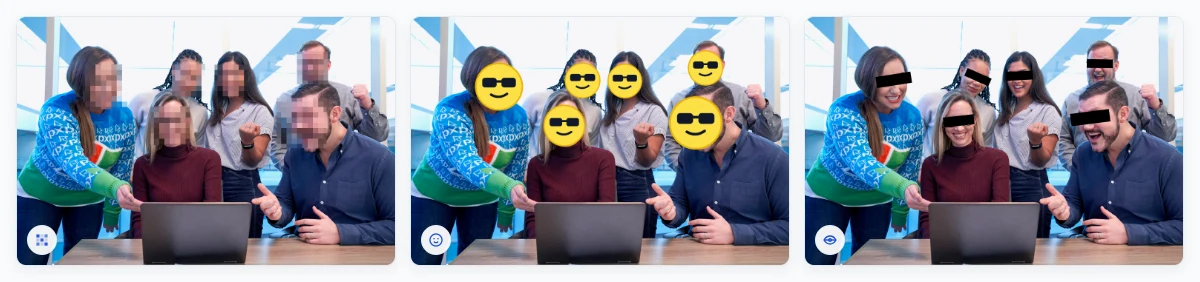
Load a Photo or Image
Drag and drop an image onto the canvas, click Select Image, or paste a screenshot with Ctrl+V / Cmd+V on desktop.
Choose Areas and Mask Style
Manual Selective Masking
Under Manual Draw & Adjust, choose Rectangle, Circle, or Brush and drag over the area you want to hide. In Mask Style (Auto & Manual), switch between Pixelate, Blur, Redact, and Stamp, then adjust block size, intensity, color, or custom stamp images via Add Custom Image. Click any frame to move, resize, rotate, or remove it.
Auto-Hide Faces, Eyes, or Mouths
Under Auto Edit, choose Full Face, Eyes, or Mouth and click Auto-Hide Faces to mask detected people at once. Keep Sync all turned on to update every frame together, or turn it off to edit individual frames.
Auto Blur Background
Toggle Auto-Blur Background under Auto Edit to keep the main subject clear while blurring the background. Adjust the Background Blur slider to fine-tune the blur level.
Download or Copy
Choose PNG, JPG, or WebP and click Download to save to your device, or click Copy to place the edited image onto your clipboard.
Local Browser Processing with No Uploads
Manual edits, automatic face detection, and background blur run entirely inside your browser. Photos and screenshots are never uploaded to external servers or used for model training.
Full Face, Eyes, and Mouth Detection with Sync Control
Detect multiple faces in group photos and mask the Full Face, Eyes, or Mouth. Toggle Sync all to switch mask styles across every frame at once, or turn it off to move, resize, rotate, or delete frames individually.
20 Built-In Stamps and Custom Image Uploads
Choose from 20 built-in stamps such as sunglasses and smile icons, or click Add Custom Image to cover faces with your own image. Supports Circle Crop and free rotation.
No App Required on iPhone, Android, and Desktop
Blur image parts, censor text, or pixelate photos in any modern mobile or desktop browser without installing software. Supports clipboard paste (Ctrl+V / Cmd+V), one-click copy, and Undo / Redo.
Hiding Faces in Group Photos for Social Posts
Detect faces, eyes, or mouths in group shots and export images masked with pixelation, blur, censor bars, or stamps.
Blurring Text and Details in Screenshots
Cover names, addresses, account IDs, or background signs with Rectangle, Circle, or Brush masks before sharing.
Selective Background Blur for Portraits
Separate the main subject and blur cluttered backgrounds or bystanders while keeping the foreground clear.
Are my images uploaded to a server or used for training?
Can I blur or pixelate photos on iPhone or Android without an app?
Can I cover faces with my own custom image?
Is EXIF GPS location metadata removed from exported images?
What image formats and size limits are supported?
Open Source Software & Model Licenses
This tool runs client-side processing using the following open-source libraries and machine learning models.
- MediaPipe Face Detector (BlazeFace Full & Short Range): Copyright © 2023 The MediaPipe Authors (Apache-2.0 License)
- BiRefNet / ORMBG Segmentation Models: Copyright © 2024 ZhengPeng7 / Christian Schirrmacher (Apache-2.0 License)
- ONNX Runtime Web: Copyright © Microsoft Corporation (MIT License)
- Vue.js: Yuxi (Evan) You (MIT License)
See THIRD-PARTY-LICENSES.txt for full license texts and notices.