Scatter Plot Maker
Create scatter plots directly in your browser. Free tool with automatic correlation coefficient calculation, regression lines, and 4-quadrant matrix support.
Visualize correlation and distribution between two variables
Plot two variables to analyze correlations and data distributions directly in your browser. Supports pasting from Excel or spreadsheets, automatic calculation of correlation coefficient (r) and R², linear regression trendlines, 4-quadrant positioning matrices, and trajectory lines. Export finished charts as transparent PNGs or copy directly to your clipboard.
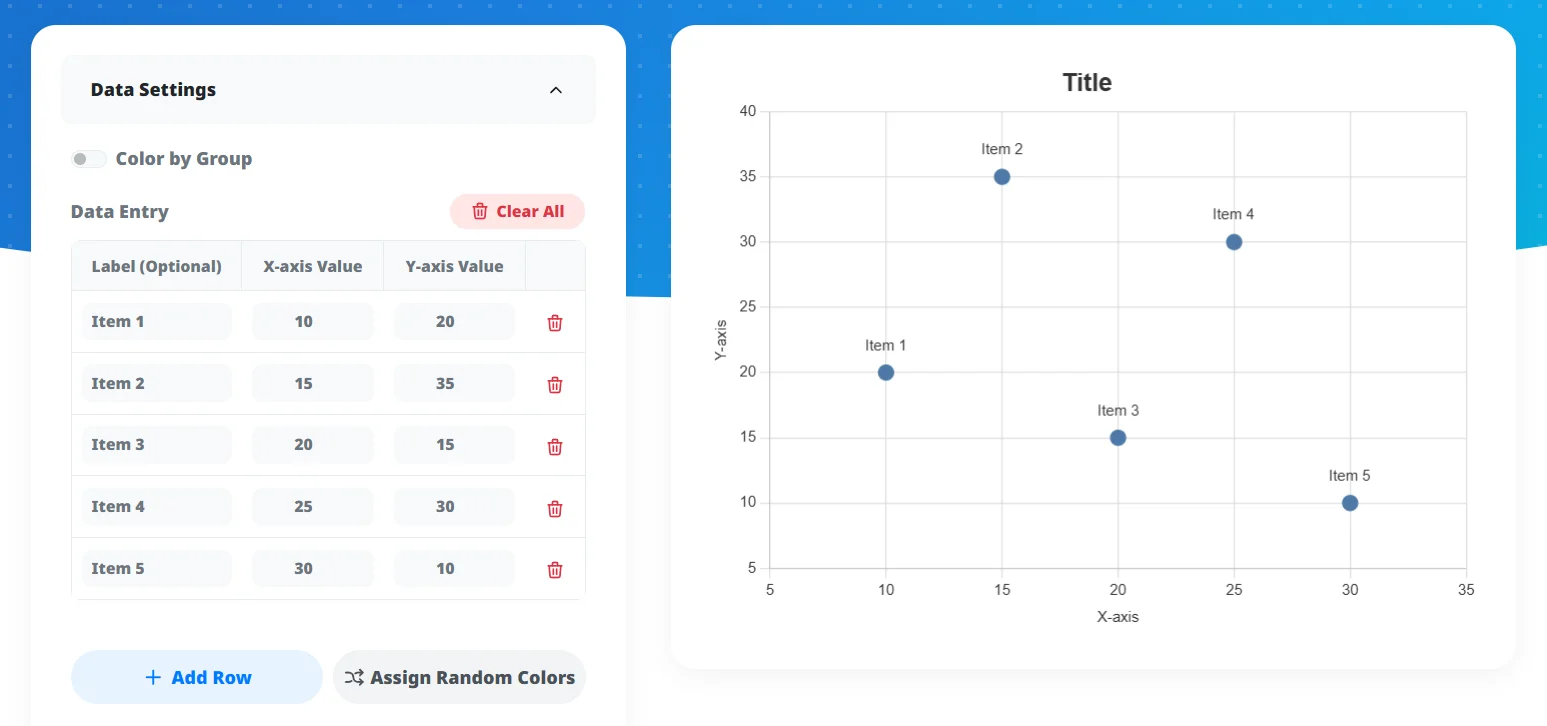
Enter Data
Enter X and Y coordinates. Assign item labels or group names to categorize points by color, or paste table data directly from Excel.
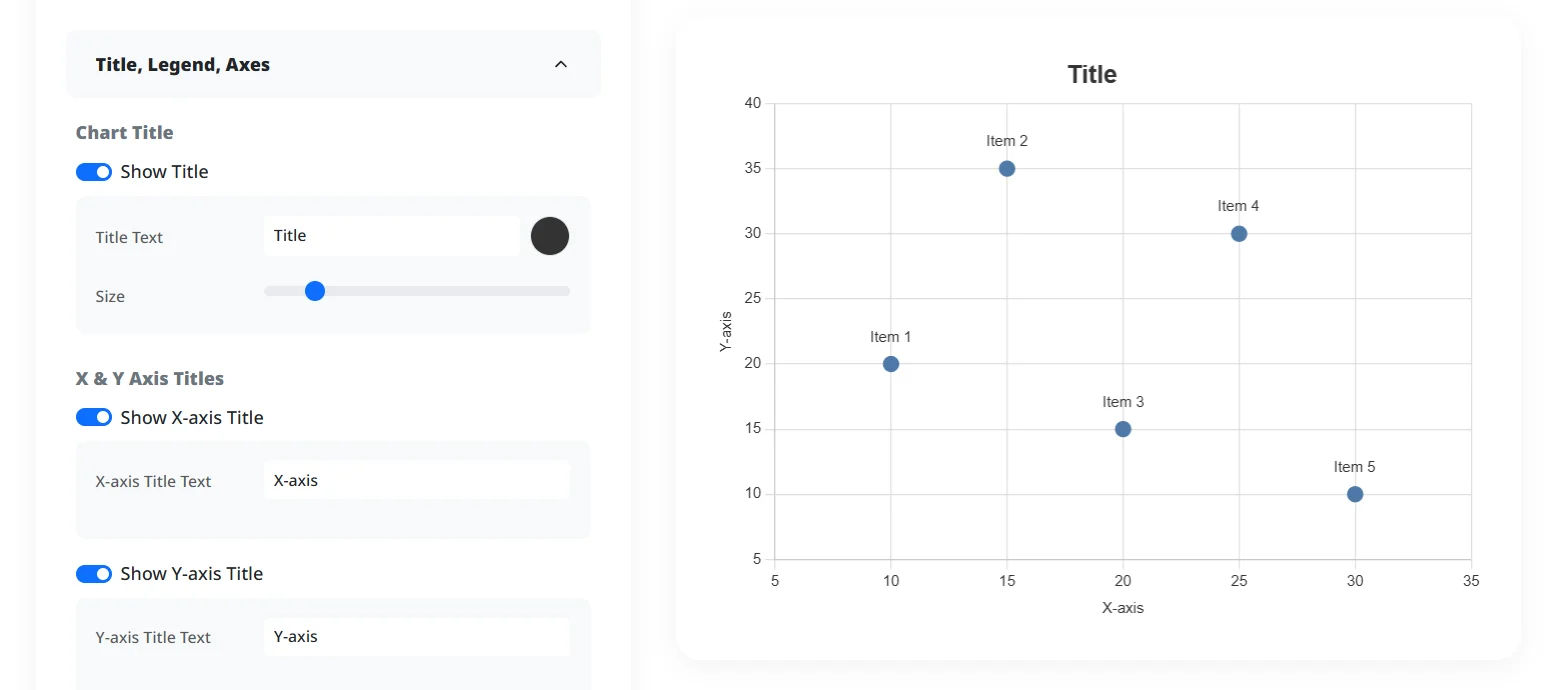
Configure Analysis & Styles
Enable correlation diagnostics, draw regression lines, set up 4-quadrant crosshair divisions, and customize color themes or marker shapes.
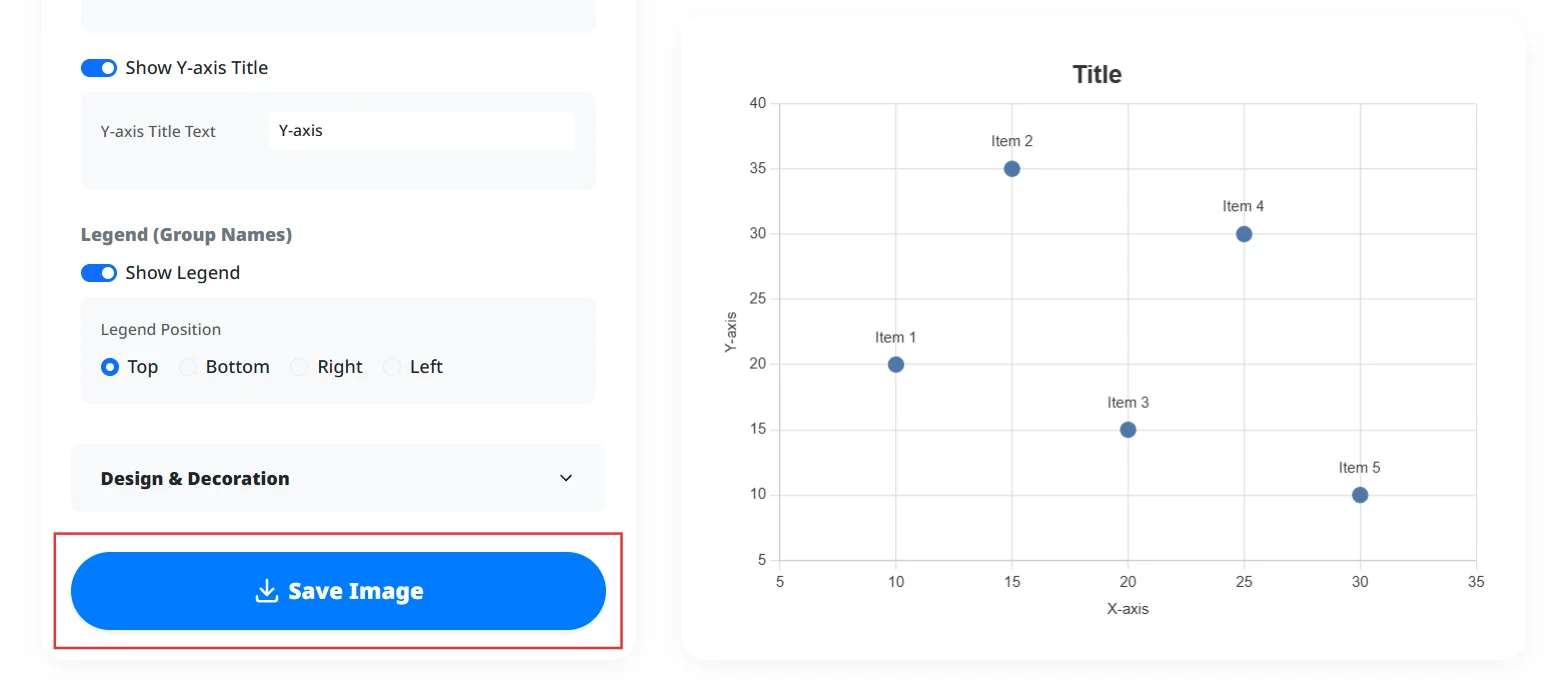
Save & Copy Image
Download your scatter plot as a PNG image or copy it to the clipboard to paste into PowerPoint or Word. Mobile devices can share directly via the system share menu.
Automated Correlation & Regression
Calculates correlation coefficient (r) and R² dynamically while rendering regression trendlines on top of your data.
Excel Paste & Ready Templates
Paste raw spreadsheet data or load pre-built templates to start plotting.
4-Quadrant Positioning Matrix
Segment charts into four strategic zones using mean-value or origin crosshairs with customizable quadrant labels.
Direct Clipboard Copy & Transparent PNG
Export high-resolution PNGs with transparent backgrounds or copy directly to your clipboard for slide decks.
Axis Swapping & Scale Control
Swap X and Y axes with one click, or set manual minimums, maximums, tick intervals, and custom axis units.
Data Labels & Trend Trajectories
Display item names on individual points, or connect points with lines to illustrate sequential trends.
Analyzing Correlation Between Two Variables
Evaluate potential relationships between metrics such as advertising spend and revenue or temperature and foot traffic.
Competitive Positioning & Market Maps
Map products across price and quality axes to present strategic competitive positioning.
Experimental Data & Trajectory Tracking
Plot observation points and connect them sequentially to communicate progression and experimental variance.
Does this tool calculate correlation coefficients and trendlines automatically?
Can I paste two-column X and Y coordinates directly from Excel or Google Sheets?
Can I color-code points across multiple categories?
Can I connect data points with lines to track sequential trends?
Can I create a 4-quadrant positioning matrix?
Can I swap the X and Y axes?
Can I display labels or item names on individual data points?
How do I read a scatter plot and interpret the correlation coefficient (r)?
Analyze data correlations without installing software. Includes automated correlation metrics, regression formulas, 4-quadrant matrix division, and direct spreadsheet copy-pasting. Generated graphics are free to use for business presentations, academic reports, and commercial projects.
Create your scatter plot now